Managing time effectively is key to staying productive in any work environment. An employee daily schedule planner template offers a simple, structured way to organize tasks, meetings, and priorities—all in one place. Whether you’re managing a team or planning your workflow, a well-designed schedule maker helps improve focus, reduce last-minute stress, and support consistent work performance.
For professionals seeking flexibility, using a schedule maker ensures your schedule can be easily updated, customized, and reused. With editable layouts, free access, and options for both individual and team use, this tool is ideal for creating a balanced, efficient, and organized daily routine.
What Key Sections Are in This Employee Daily Schedule Planner Template?
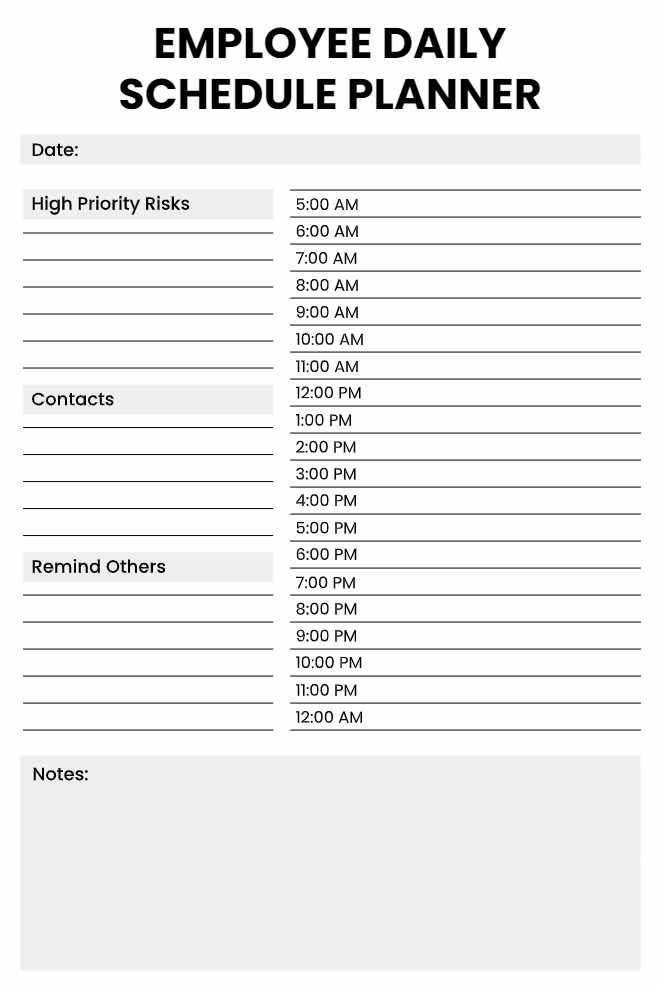
The Simple Employee Daily Schedule Planner is thoughtfully designed to help employees manage their workday with clarity and efficiency. Featuring a clean, professional look, this planner ensures ease of use while keeping employees focused on their priorities. Its structured layout empowers professionals to stay organized, manage tasks effectively, and maintain a productive workflow throughout the day.
Template Overview
- Color scheme: Professional and clean design with a light gray and white palette for a distraction-free experience.
- Theme: Minimalistic layout to enhance readability and reduce visual clutter.
- Background: Light-toned to promote focus and clarity while planning.
Sections Included:
- High Priority Tasks: Identify and list critical tasks that need immediate attention. For example, preparing a client presentation due by noon or addressing a project deadline.
- Contacts: Keep a handy list of key people to connect with during the day, such as a manager for approvals or a teammate for collaboration. Include their names and preferred contact methods (e.g., email or phone).
- Remind Others: Jot down follow-ups or reminders to share with colleagues. For instance, remind a team member about a meeting or follow up on a pending task.
- Hourly Schedule: A detailed timeline from 5:00 AM to 12:00 AM to plan tasks, meetings, and breaks. For example, schedule a deep work session from 9:00 AM to 11:00 AM, followed by a lunch break at 12:00 PM.
- Notes: 🗒 A dedicated space for additional thoughts, reminders, or reflections. Use this section to write down ideas that come up during the day, such as a new project concept or a reminder to book a meeting room.
This planner simplifies daily task management by providing a clear structure for employees to follow. Its intuitive design ensures that professionals can prioritize effectively, track their progress, and stay on top of their responsibilities without feeling overwhelmed.
How Can the Employee Daily Schedule Planner Template Improve Work Efficiency?
A well-organized schedule is the backbone of workplace productivity. This planner helps employees structure their day strategically, ensuring that tasks are completed on time and with minimal stress.
By providing a clear framework for task prioritization and time management, it enables professionals to work smarter, not harder, and achieve their goals more effectively. For more work-focused scheduling options, check out our work schedule planner template.
Boosting Productivity
- Prioritize Tasks Effectively: The “High Priority Tasks” section ensures urgent tasks are tackled first, preventing last-minute rushes. For example, addressing a critical email response before moving to less urgent administrative work.
- Reduce Procrastination: A structured hourly schedule keeps employees on track. Seeing a task like “Draft project proposal” scheduled from 10:00 AM to 11:00 AM creates accountability and minimizes delays.
- Track Progress: The planner allows employees to check off completed tasks, providing a sense of accomplishment and a clear view of what’s left. For instance, completing a report by 2:00 PM can motivate you to tackle the next task with energy.
- Ensure Consistency: Regular use of the planner builds strong scheduling habits, leading to sustained productivity over time. It helps employees establish routines, such as reserving mornings for creative work and afternoons for meetings.
- Minimize Overlaps: The hourly timeline prevents scheduling conflicts by clearly mapping out the day. For example, you can avoid double-booking a team meeting and a client call by seeing your availability at a glance.
By incorporating these practices, the planner helps employees streamline their workflow, reduce inefficiencies, and maintain focus throughout the day.
Why Should Employees Use This Employee Daily Schedule Planner Template?
Staying organized is essential for boosting productivity and reducing workplace stress. This planner is more than just a schedule — it’s a powerful system for employees who want to take control of their time, manage tasks efficiently, and optimize their daily performance.
To maximize its impact, we’ve included effective time management tips that empower users to prioritize smarter, stay focused, and ensure critical tasks are completed without burnout. With the right strategies and structure, this planner helps create a balanced, high-performing workday.
Benefits for Professionals
- Enhances Organization and Accountability: Keeps tasks and deadlines clearly outlined, ensuring nothing slips through the cracks. For example, listing a project milestone in the “High Priority Tasks” section ensures it’s addressed promptly.
- Improves Time Management: Helps allocate time efficiently across tasks, preventing last-minute scrambles. For instance, scheduling a 30-minute block to review emails at 3:00 PM ensures you’re not constantly distracted throughout the day. To dive deeper into this technique, explore our time blocking planner templates.
- Balances Workload: Distributes tasks evenly throughout the day, making workloads more manageable. If you have a heavy report to write, the planner lets you break it into two focused sessions (e.g., 9:00 AM–10:00 AM and 2:00 PM–3:00 PM) to avoid burnout.
- Encourages Goal-Setting: Enables employees to set realistic daily objectives and track progress toward larger goals. For example, if your weekly goal is to finalize a project plan, the planner helps you allocate time each day to make steady progress. To enhance your goal-setting practice, check out our goal planner template.
- Fosters Collaboration: The “Remind Others” section ensures timely communication with colleagues, strengthening teamwork. For instance, noting a reminder to check in with a coworker about a shared task keeps projects moving forward smoothly.
This planner empowers employees to take control of their day, reduce stress, and achieve their professional goals with confidence.
Tips for Using the Employee Daily Schedule Planner Effectively
To maximize the benefits of this planner, consider the following strategies:
- Start with Priorities: Begin your day by filling out the “High Priority Tasks” section to focus on what matters most.
- Block Time for Breaks: Schedule short breaks in the hourly timeline (e.g., a 15-minute break at 11:00 AM) to recharge and maintain focus. For a more detailed hourly planning experience, try our hourly planner template.
- Review and Reflect: At the end of the day, use the “Notes” section to reflect on what went well and what could be improved for tomorrow.
- Be Flexible: Leave some buffer time in your schedule for unexpected tasks or delays, such as a last-minute meeting or urgent email.
- Use Consistently: Make the planner a daily habit to build strong organizational skills and maintain a steady workflow over time.
Customizing the Planner for Different Roles
Every employee’s workday looks different depending on their role, responsibilities, and work environment. Whether you’re a manager overseeing a team, a creative professional working on projects, or a customer service representative handling client inquiries, our customizable planner template offers a flexible solution designed to adapt to your specific needs and help you stay organized throughout the day.
By customizing the planner’s sections to align with your role, you can maximize its effectiveness and ensure it supports your unique workflow. Below, we’ll explore how professionals in different roles can adapt the planner to enhance their productivity and organization.
For Managers: Streamline Leadership and Delegation
Managers often juggle multiple responsibilities, from overseeing projects to coordinating with team members and stakeholders. The planner can help you stay on top of your leadership tasks while ensuring smooth team collaboration.
10:00 AM – One-on-One with Sarah
2:00 PM – Strategy Session
Mr. Johnson (Client) – Email: [email protected]
Follow up with Emily on client feedback
Research new project management tools
For Creatives: Balance Inspiration and Deadlines
Creative professionals, such as designers, writers, or marketers, often need uninterrupted time for brainstorming and creating, balanced with deadlines and client meetings. The planner can help you structure your day to nurture creativity while meeting professional demands.
11:00 AM – 11:30 AM – Break
3:00 PM – 4:00 PM – Client feedback/revisions
Marketing Team – Slack channel #campaign
Share draft with marketing team for review
Try a new headline style for the campaign
For Customer Service Representatives: Manage Inquiries and Follow-Ups
Customer service representatives (CSRs) often handle a high volume of inquiries, requiring strong time management and communication skills. The planner can help CSRs organize their day to ensure timely responses and excellent service.
12:00 PM – 12:30 PM – Break
1:00 PM – 3:00 PM – Handle phone inquiries
Client B – email: [email protected]
Email Client D with resolution update by 5:00 PM
Sign up for next week’s training session
For Freelancers: Juggle Multiple Clients and Projects
Freelancers often work with multiple clients, each with their deadlines and requirements. The planner can help freelancers stay organized and balance their workload across projects.
11:30 AM – 1:00 PM – Client Y Task
4:00 PM – 4:30 PM – Invoicing
Client Y – phone: 555-5678
Ask Client X for feedback on draft
Pitch new service idea to Client Z next week
Tips for Customization
- Start with Your Role’s Core Needs: Identify the most critical aspects of your job (e.g., meetings for managers, creative time for designers) and prioritize those in the planner.
- Experiment and Adjust: Try different ways of using the sections and adjust based on what works best for your role. For example, a CSR might use the “Notes” section for customer service tips, while a freelancer might use it for project tracking.
- Combine with Role-Specific Tools: Pair the planner with tools specific to your role, such as a CRM for CSRs or a design app for creatives, to enhance its functionality.
Conclusion
The Simple Employee Daily Schedule Planner Template, along with the PlanWiz planner app, is an excellent tool for professionals seeking to enhance productivity and manage their workdays efficiently. By using this planner, Furthermore, employees can stay organized, prioritize tasks, and maintain a structured workflow, ultimately leading to improved work performance and a stress-free routine.
FAQs
It structures your day with a timeline, ensuring you focus on key tasks like “Draft proposal from 10:00 AM to 11:00 AM” to avoid procrastination.
Yes, schedule work tasks like a 9:00 AM meeting and personal ones like a 6:00 PM workout in the timeline.
Assign tasks to specific slots with 15-minute buffers, like a meeting from 1:00 PM to 2:00 PM, and leave gaps for breaks.
Check off tasks in the timeline, like “Finish report by 2:00 PM,” and note in “Notes” what’s left, like “Reschedule 2 tasks.”
Yes, add remote work hours like 9:00 AM to 5:00 PM and virtual meeting links to keep the team aligned.