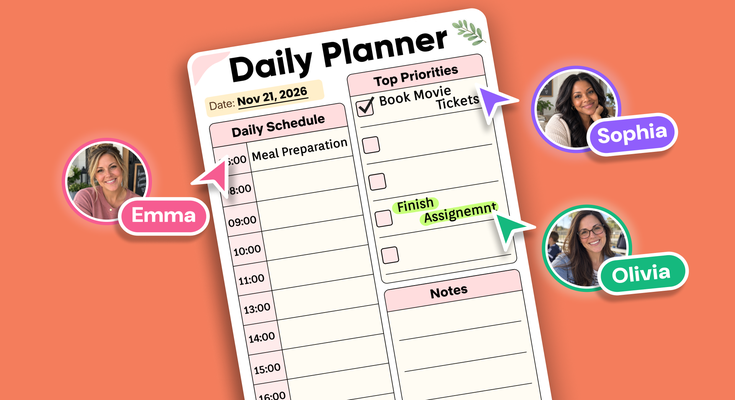
Introducing Co-Planning in PlanWiz! Invite friends and family to the same planner template using a simple link. Create shared plans, organize tasks, and work together on everyday activities, family schedules, and common goals. Everyone can stay updated with shared reminders and notifications. Co-Planning makes it easy to plan together, manage responsibilities, and keep everyone on the same page, all in one shared planner.
The Problem with Planning Alone
Most of us plan on our own. We write a to-do list, block out a routine, or note down a goal in a personal planner. This works well when the plan only involves you.
But a lot of real-life planning involves other people. A family has a weekly schedule that touches everyone. A group of friends has a goal they want to reach together. A household has chores, errands, and responsibilities that need to be divided.
When these plans live in one person’s planner, problems appear quickly:
- Others cannot see the plan, so they depend on that one person to explain it.
- Updates are shared through scattered messages, which are easy to miss.
- Different people end up with different versions of the same plan.
- Nobody is fully sure who is responsible for what.
Planning is easier when everyone involved can see the same plan. That is the idea behind Co-Planning.
What Is Co-Planning?
Co-Planning is a PlanWiz feature that lets you invite friends and family into the same planner template using a simple link. Instead of keeping your plan to yourself, you turn it into a shared planner where everyone you invite can plan with you.
Together, you can create shared plans, organize tasks, and work on everyday activities, family schedules, and common goals, all in one place.
How to Use Co-Planning in PlanWiz, Step by Step
Co-Planning is designed to be simple. Follow these 6 steps to invite friends and family to your planner and start planning together.
Step 1: Open Your Planner Template
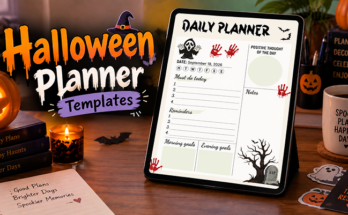
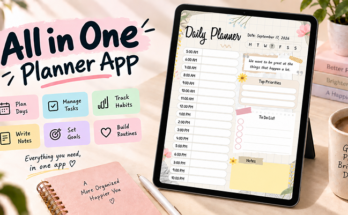
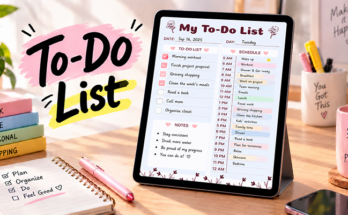
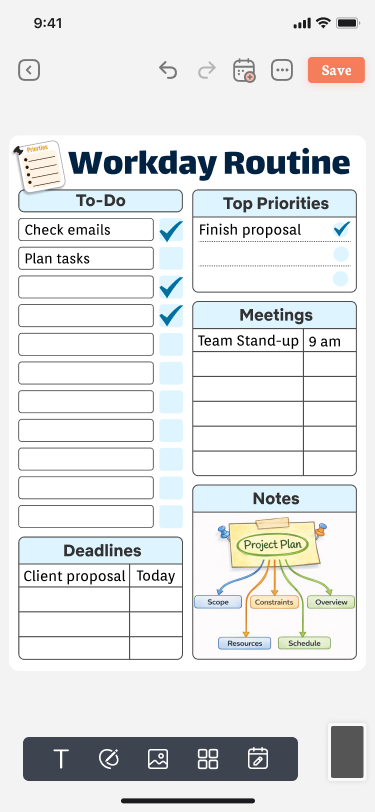
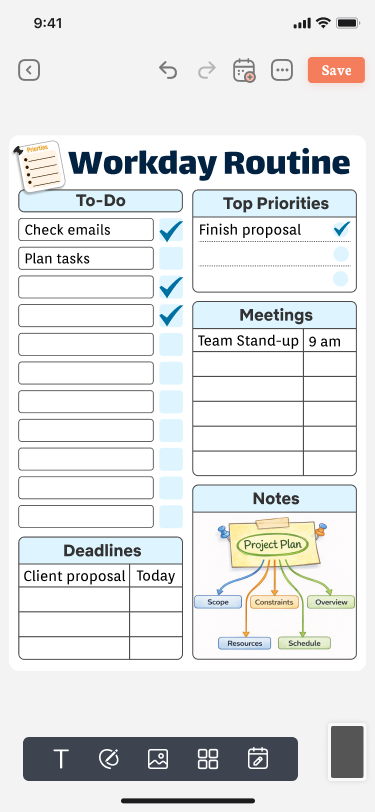
Start by opening the planner you want to plan together in the PlanWiz editor. This can be any planner template, such as a daily routine with a to-do list, top priorities, meetings, deadlines, and notes.
Choose a template that suits what you are planning. Whether it is a workday routine, a family schedule, or a goal you want to reach with others, the same planner template is what your friends and family will join, so everyone will be planning in the same place.
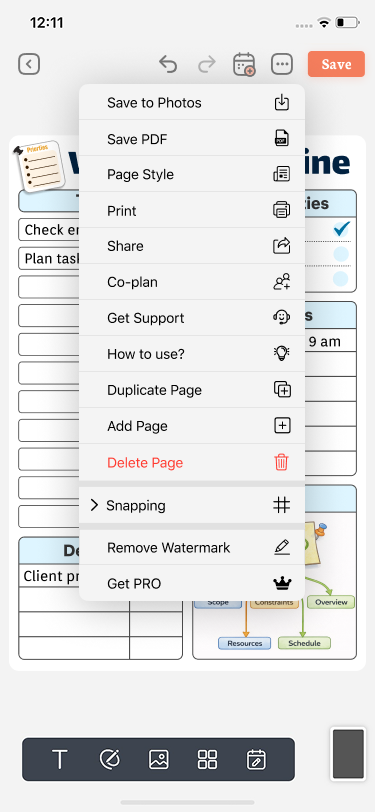
Step 2: Tap the “…” Menu and Select Co-Plan
In the top bar of the editor, tap the “…” icon. A menu opens with several options for your planner, such as saving, printing, sharing, and duplicating a page. Look for Co-plan in this list and select it.
Selecting Co-plan is what turns your personal planner into a shared one and starts the process of inviting others.
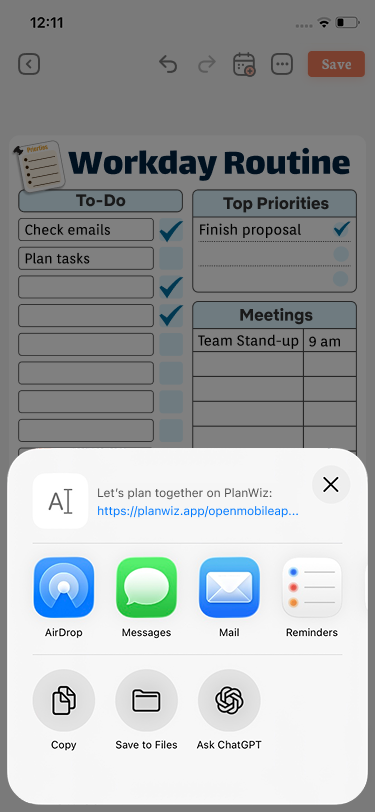
Step 3: Share the Link
After you select Co-plan, a share sheet opens with your invite link. Share the link with the friends and family you want to plan with, using the option you prefer, such as AirDrop, Messages, Mail, or by copying the link and sending it yourself.
To invite others, you sign in with your Apple or Google account. Signing in lets you invite others to plan with you, keeps shared changes synced, and gives you access to your planner across devices.
Share the link only with the people who are part of the plan, since anyone who opens it can join your planner.
Step 4: Return to Your Planner
Once you have shared the link, you go back to your planner in the editor. Your planner is now ready for the people you invited, and you can keep working on it while you wait for them to join.
Step 5: Your Friends and Family Join
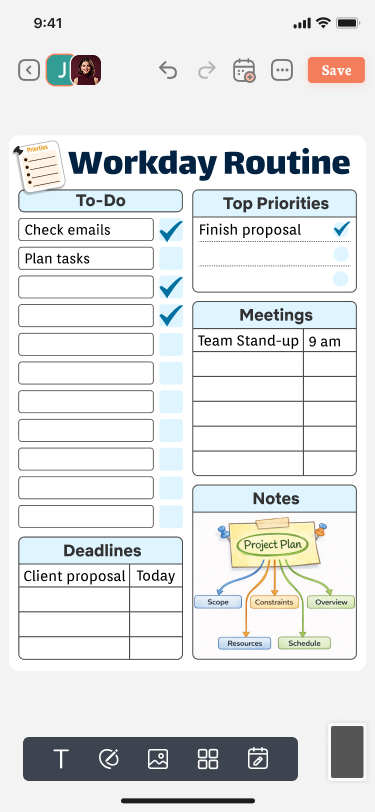
When the people you invited open the link, they join the same planner and can plan with you. Everyone is now working in one shared planner, so there is a single place to see the plan.
As people join, their profile avatars appear at the top of the editor, next to the back button, so everyone can see who is part of the planner.
Step 6: See Who Has Joined
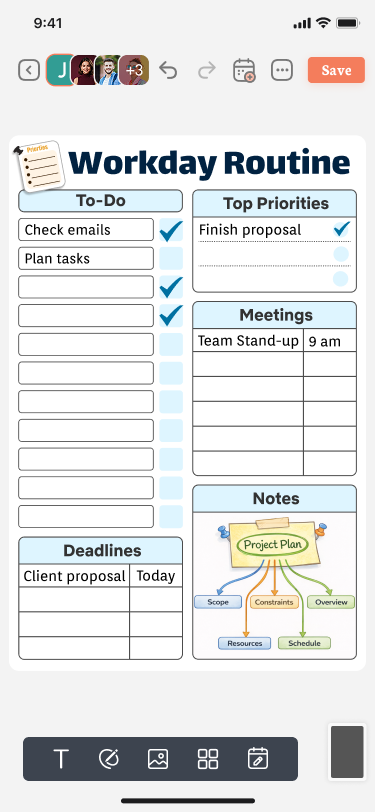
As more people join, the avatars stack together at the top of the editor, and a counter such as +3 shows how many additional people are in the planner. Everyone can see who is part of the plan at a glance.
From here, you can plan everyday activities, family schedules, and common goals together, organize tasks, and manage responsibilities in one shared planner, while shared reminders and notifications keep everyone updated.
Why Co-Planning Is Useful?
Co-planning is useful because it solves everyday planning problems with other people.
It Puts Everyone in the Same Planner
Instead of sharing parts of a plan through different messages, everyone works in one shared planner. There is a single place to look, so the plan is always clear.
It Makes Responsibilities Visible
When tasks and plans are shared, it becomes easier to manage responsibilities. People can see what needs to be done, which helps everyone understand their part in the plan.
It Keeps Everyone Updated
Shared reminders and notifications help everyone stay updated. This means the whole group stays informed about the plan, without one person having to remind everyone individually.
It Saves Time and Effort
You do not need to retype your plan, send screenshots, or explain it again and again. One simple link is enough to bring people into your planner.
It Makes Planning More Collaborative
Planning together means everyone can take part in shaping the plan, instead of just receiving it.
Key Benefits of Co-Planning
- One shared planner for everyone. All plans and tasks stay in the same place.
- Simple invitations. A single link is all it takes to invite friends and family.
- Clear task organization. Organize tasks together so the plan is easy to follow.
- Better management of responsibilities. Everyone can see what needs to be done.
- Shared reminders and notifications. Everyone stays updated with the plan.
- See who has joined. Profile avatars at the top of the editor show who is in the planner.
- Synced changes. Signing in keeps shared changes synced.
- Access across devices. Your planner is available across your devices once you sign in.
Who Can Benefit from Co-Planning?
- Families: Family life involves many moving parts. Co-Planning helps families build shared schedules and keep everyone aware of what is planned.
- Friends: Whether you are working toward a common goal or organizing activities together, a shared planner helps friends stay aligned.
- Households: When responsibilities are shared, a shared planner makes it easier to see and manage who is doing what.
- Anyone Who Plans with Others: If any part of your plan depends on other people, Co-Planning gives everyone a common place to plan.
Everyday Ways to Use Co-Planning
- Everyday activities: Plan routines and daily tasks together.
- Family schedules: Build a schedule the whole family can follow.
- Common goals: Work toward shared goals with everyone able to see the plan.
- Task organization: Organize tasks together and keep responsibilities clear.
- Shared reminders: Keep everyone on track with reminders and notifications.
Tips for Planning Together
- Start with a clear template. Choose a planner template that suits what you are planning.
- Invite the right people. Share the link only with the people who are part of the plan.
- Organize tasks clearly. The clearer the tasks, the easier it is for everyone to follow along.
- Use reminders. Shared reminders and notifications help everyone stay updated.
- Check who has joined. The avatars at the top of the editor show who is in your planner.
Frequently Asked Questions
Co-Planning is a feature that lets you invite friends and family to the same planner template using a simple link, so you can plan together in one shared planner.
Co-Planning keeps everyone on the same page. You can create shared plans, organize tasks, manage responsibilities, and stay updated with shared reminders and notifications.
Open your planner, tap the “…” menu, select Co-plan, and share the link. When your friends and family open it, they join the same planner and can plan with you.
Yes, you sign in with your Apple or Google account. Signing in lets you invite others, keeps shared changes synced, and gives you access to your planner across devices.
Co-Planning keeps the whole plan in one shared planner, so no one works from a different version, and everyone stays updated on shared reminders and notifications.
Final Thoughts
Good plans work best when everyone involved can see them, update them, and stay informed. Co-Planning brings that into PlanWiz: one shared planner, one simple link, and a clear view of who is planning with you.