You open your iPad to plan your day, but wait… where did that note go?
Why are there 100 tabs open?
And didn’t you just download that file yesterday?
We have all been there. Everything feels scattered. Your work stuff, your personal tasks, your reminders… It’s like they are hiding in different corners of your screen. And suddenly, you do not feel like doing anything at all.
But what if your iPad could actually help you feel calm instead of stressed?
Good news. It can.
With the right iPad organization app, you can bring order to your busy mind. You can keep your files neat, your plans clear, and your to-dos in one easy spot. No more digital mess. No more forgetting things.
In this guide, I will show you how to clean up your iPad, set it up like a personal assistant, and make it work for your life using the ipad organization app, whether that is school, work, or just everyday stuff. It is time to stop feeling scattered and start feeling in control.
Let us create digital order one simple step at a time.
Table of Contents
1. What Does a Digital Life Audit Look Like on an iPad?
2. Why Should You Declutter Before Using the iPad Organization App?
3. How Can You Use Folders and Tags to Organize Life on iPad?
4. How Can iPad Digital Planners Help Balance Work and Life?
5. How Should You Manage Notes and Ideas with an iPad Organization App?
6. How Can You Use iPad Shortcuts and Widgets for Daily Order?
7. How Can You Maintain iPad Digital Organization Long-Term?
8. Conclusion
What Does a Digital Life Audit Look Like on an iPad?
Before you can organize anything, you need to take a clear look at what is going on. A digital life audit means checking where things feel cluttered or messy on your iPad. Think of it like cleaning out a closet. You take everything out first so you can see what you have, what is useful, and what you no longer need. Using an iPad organization app can make this process easier by helping you sort, declutter, and reset your digital space with more intention.
The same idea works for your digital stuff. Let us start by asking a few simple questions.
- Where is your digital mess hiding? Is it in your emails, files, apps, or calendar?
- What part of your life feels most out of control? School, work, or home?
- Are your notes easy to find?
- Do your apps help you, or just sit there taking up space?
Once you ask these questions, it is time to look through your iPad step by step.
Here is how to do your digital life checkup:
- Go to Settings and tap General. Then tap iPad Storage. What is using up all the space?
- Open the Files app. Look in both On My iPad and iCloud Drive. Do you see any random files that do not belong?
- Open the Notes and Reminders apps. Are your notes and tasks mixed up or hard to follow?
- Go to the Photos app and check the Screenshots album. That spot is often full of old pictures you forgot about.
- Look at your Home Screen and App Library. Are your apps in groups that make sense, or do they look messy?
If you’re already thinking about a cleaner system after this audit, consider using a digital planner for iPad to bring structure and calm into your daily routine. It’s a great next step once you’ve cleared the clutter.
A Smart Tip: Make a simple checklist called your Digital Clutter List. Put things like Files, Photos, Apps, Notes, Calendar, and Bookmarks on it. Then check off each one as you clean it up.
Why Should You Declutter Before Using the iPad Organization App?
Before you jump into folders, tags, and new apps, there is something important to do first. Clear the mess. Think of your iPad like a messy room. If you try to organize without cleaning first, you will just move the mess around. But when you declutter, you make space for things that actually matter. You give yourself a fresh start.
This is why decluttering is the first step. It helps your iPad run smoother, makes apps easier to find, and gives your mind more space to focus.
So, what should you clean up?
Here are a few places to check:
- Unused apps
Look through all your apps. Are there any you have not opened in weeks? It is okay to let them go. You can always download them again later if you need to. - Duplicate photos
Check your photo library. You might have lots of the same selfie, screenshot, or burst photo. Keep the best one and delete the rest. - Old documents
Go through your school or work files. Are there old PDFs or notes you do not need anymore? If yes, move them to the trash. - Downloads folder
This folder fills up quickly. You might find random images, PDFs, or ZIP files you do not even remember saving. Clean it out. - Too many open tabs in Safari
If you have 30 tabs open, it is probably slowing you down. Save the ones you still need to your reading list or bookmarks and close the rest.
Need help cleaning faster?
You can also use a few apps that make decluttering easier:
- Gemini Photos
This app finds duplicate photos and screenshots. It shows you what you can delete with just a few taps. - Remo Duplicate Files Remover
Great for checking your folders. It finds extra copies of documents so you can delete them safely. - Cleaner for iPad
This tool helps you find large files, app junk, and memory hogs you might not see on your own.
One important reminder: Before you delete anything big, make a backup of your iPad. Use iCloud or connect it to your Mac. That way, if you remove something by mistake, you can get it back easily.
How Can You Use Folders and Tags to Organize Life on iPad?
So now your iPad is clean. No more random files or apps you never use. Nice job.
But what now? How do you keep everything neat and easy to find?
This is where folders and tags come in. Think of folders as little drawers where you keep your stuff, and tags as labels that help you grab the right thing when you need it.
Once you set this up, your iPad will feel way less messy. It will actually help you stay on top of things instead of making you feel stressed.
Start by Splitting Life Into Zones
Let us make it simple. Your life probably has a few main parts, right?
Like your work or school stuff, your personal life, and maybe your goals or learning.

So why not build your folders that way?
Here is one way to think about it:
- Work Zone
This is for all the job or school stuff. Like client folders, class projects, work reports, or lesson plans. - Personal Zone
This can hold things like health records, event invites, your family’s documents, bank info, and home bills. - Growth Zone
This one is for you. Your dreams, goals, new skills, favorite quotes, books you want to read, or anything that helps you grow.
Each zone gets its own big folder. Then inside each one, you can add smaller folders to keep it all nice and tidy.
Want to Make Your Folders Even Smarter?
Here are a few tips to help you build folders that actually work:
- Keep it clear and simple
For example, instead of one folder called Stuff, try something like
Personal → Finance → 2025 Bills
That way, you know exactly where to look. - Do not go folder crazy.
Try to keep it two or three levels deep. If you have to tap through five folders just to find one file, it is too much. - Add emojis
It might sound silly, but little icons really help. A money bag for bills, a book for learning, or a stethoscope for health make folders easy to spot.
So What Are Tags and Why Do They Help?
Tags are like digital sticky notes. You can stick them on any file or note. It helps you group stuff together even if they live in different folders. For example, you could tag everything related to school with school and then find all your school stuff in one tap, even if it is spread out across different folders.
Here is how to use them well:
- Keep tag names short
Things like urgent, idea, bills, or read later are perfect. - Use the same name every time.
Pick one tag and stick with it. Do not use important on one file and urgent on another if they mean the same thing to you. - Use colors if your app lets you.
Red for urgent, green for money, blue for learning. It is super helpful when your eyes are scanning fast. - Try Smart Folders
Some apps let you create folders that show everything with the same tag. So even if your files are in different places, they all show up in one folder if the tag matches. That is a game changer.
Need Some Apps to Help?
You do not need to do this all by yourself. Here are a few apps that make folder and tag setup super easy:
- Apple Files App
It is already on your iPad and works great for most things. You can create folders, move files, rename things, and add tags. - Documents by Readdle
This one gives you more power. You can manage tons of files, open ZIPs, and even download stuff from the internet straight into folders. - GoodReader
If you use a lot of PDFs, this app is awesome. You can highlight, make notes, and organize everything in one spot.
How Can iPad Digital Planners Help Balance Work and Life?
Have you ever felt like your day just gets away from you?
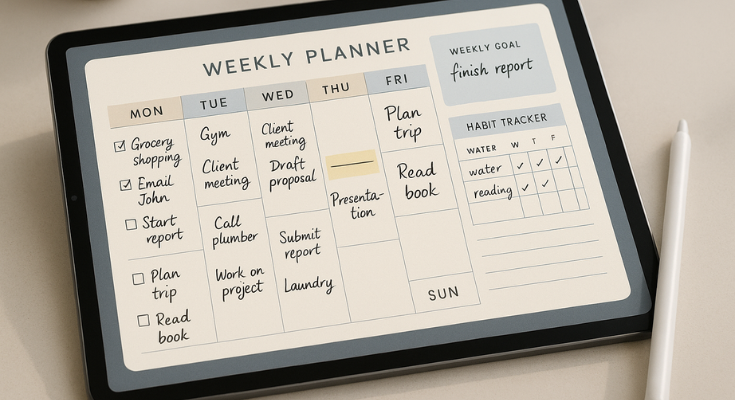
You have work tasks, home chores, family time, maybe a workout, and somehow it all starts to feel too much. This is where an iPad digital planner can really help. It brings everything together in one place so you can finally feel calm and in control.
An ipad organization app is like your personal command center. It helps you see your whole life at a glance, both work and personal, and keeps things from slipping through the cracks.
Whether you are trying to stay on top of meetings or just remember to drink more water, an iPad planner can help you do both. And if productivity is your top priority, explore these productivity planner templates built to help you plan smarter, work efficiently, and get more done with less stress.
What Can You Actually Do With a Digital Planner?
Here are just a few ways people use an iPad organization app to stay balanced and on track:
- Plan your day the way you like
Some people use hour-by-hour time blocks, while others like simple to-do lists. You get to choose what works best for your brain. - Block time for deep work
You can set a quiet focus time for big projects or creative thinking, so no one interrupts you. This helps you get real work done without feeling rushed. - Add self-care to your schedule.
Yes, your planner can remind you to take breaks, drink water, stretch, or even go for a walk. Self-care matters just as much as work. - Set goals and track habits.
Want to read more, sleep better, or eat healthier? Use habit trackers in your planner to mark progress and keep yourself motivated. - Map out big projects.
Got a school assignment or a business goal? Use your planner to break it into smaller steps and add deadlines. Suddenly, it feels doable, not stressful.
If you want to take your planning system one step further and actually boost your day-to-day performance, this guide on increasing productivity with your iPad planner shares smart strategies like batching tasks, setting goals with intention, and using planner layouts that keep you focused.
Which iPad Planner Apps Are Worth Trying?
There are many planner apps out there, but here are a few that people love, especially for staying balanced:
- PlanWiz
The PlanWiz planner app feels like using a paper planner, but better. You can use your Apple Pencil to write, draw, highlight, and customize your planner so that it looks amazing. It is perfect for people who like a more hands-on, visual way to plan. - Notion
This is great if you want a life dashboard. You can make lists, set goals, track habits, link different pages, and customize it any way you want. It works really well for both work and personal stuff, all in one space. - Todoist
If you like simple to-do lists with reminders, this one is easy to use. You can add tasks, set dates, and even get smart suggestions for when to do things. - Structured App
This app shows your day in blocks, like a timeline. It is great if you like to see your day hour by hour. You can add tasks, meetings, and personal time in a clear layout.
Want to explore more options? Check out our full roundup of the best iPad planner apps with 20 powerful tools to match every planning style—from minimalist to highly customizable.
A Helpful Tip to Stay on Track: Try setting a short planning session once a week. Just fifteen minutes on a Sunday evening can make a big difference. You can review what went well, what needs fixing, and plan your next week with a fresh mind. If you’re just getting started with digital planning, here’s a simple time management guide for iPad planner beginners that can help you build easy, effective routines right from day one.
How Should You Manage Notes and Ideas with an iPad Organization App?
We all take notes, whether it is a grocery list, a meeting idea, a journal entry, or a quick thought that pops into our mind. But here is the truth: most of those notes get forgotten or lost in a sea of apps and files.
That is why using an iPad organization app for your notes is a game-changer. With the right setup, your ideas will not just sit around; they will actually help you in your daily life.
First, organize your notes by type.
We all take notes for different reasons. Not every note serves the same purpose. Some are quick reminders. Others capture big ideas or important details you want to hold onto. That is why it helps to first understand why you are taking the note. When you know the reason behind it, organizing your notes using an iPad organization app becomes much easier and more effective.
And if you’re someone who likes to reflect or keep a personal log, using a digital journal is one of the best ways to turn scattered thoughts into organized insights you can return to anytime.
Instead of keeping all your notes in one big, messy list, try dividing them into clear categories. Grouping them by topic or purpose makes it faster to find what you need later. You will save time, avoid confusion, and actually enjoy using your notes.
Here are some helpful note categories to start with:
- Work Notes – For things like meetings, tasks, project plans, and team ideas
- Personal Notes – For your journal, health info, grocery lists, or daily thoughts
- Learning Notes – For class lessons, online courses, or book summaries
- Creative Notes – For writing ideas, sketches, quotes, or anything inspiring
You do not need to follow these exactly. Make your own categories based on your lifestyle. The goal is to give your notes a “home” where they belong.
Build smart note-taking habits
Let us be real, notes pile up quickly. One day, it is a few ideas, and suddenly you are scrolling through pages trying to remember where you wrote that one thing. That is why having a few easy habits can make a big difference. You do not need a complex system. Just small actions that you do regularly to keep things in check.
Here are some habits that really help:
- Use templates – When you take similar kinds of notes (like meeting summaries or weekly goals), having a simple format makes it faster to write and easier to read later. Need help getting started? Try the notes planner templates designed specifically for digital planning. They can give your notes more structure and make your iPad feel like a real productivity tool.
- Do a weekly check-in – Spend 10 to 15 minutes each week reviewing your notes. Tag the important ones, delete anything you no longer need, and move everything into the right folders. This habit keeps your digital space tidy, helps you find things faster, and makes your notes actually useful when you need them.
- Create a “Quick Capture” space – Set up one dedicated page or notebook where you can instantly jot down random thoughts, tasks, or ideas. Don’t worry about organizing it right away. Just get it out of your head. Later, you can revisit that space and sort everything into the proper folders or categories with more intention.
These habits do not take much time, but they go a long way. When you stay consistent, your iPad stays organized, and your brain feels way less overloaded.
How Can You Use iPad Shortcuts and Widgets for Daily Order?
Let’s imagine your iPad as your personal assistant.
Not just a screen, but a smart helper that knows what you need before you even ask.
That is the magic of using shortcuts and widgets. They take your daily chaos and turn it into something calm, smooth, and easy to manage. Let us walk through how you can set this up in your own life.

Step 1: Make Your Mornings Smoother with Smart Shortcuts
Your morning can feel busy. But what if your iPad already had your day ready?
Here is how you can set up a Morning Routine Shortcut:
- Open the Shortcuts app on your iPad
- Add actions like:
- Open your calendar
- Check your reminders
- Play your favorite playlist
- Open your calendar
- Save it and place it on your Home Screen.
Now, with one tap in the morning, your iPad does all the work for you.
Step 2: Capture Thoughts Instantly
Sometimes you get a good idea or need to write something fast. Set up a Quick Note Shortcut that opens your note app right away.
Why it helps:
- You do not waste time searching for an app
- You can record or type something fast
- You will not forget great ideas later
Add this shortcut to your Home Screen or lock screen. Now you are always ready to capture inspiration.
Step 3: Save Time with Quick Actions
Need to turn a photo or scanned paper into a PDF?
Use the Convert to PDF shortcut:
- It lets you choose a photo or file
- One tap turns it into a clean PDF
- Great for school, work, or sharing documents
Shortcuts like this save time every single day.
Step 4: Use Widgets to See What Matters Instantly
Widgets are tools you place on your iPad’s Home Screen. They show live information from your favorite apps—without opening anything.
Try these useful widgets:
- To Do List Widget
Shows tasks for the day so you never forget what is next - Calendar Widget
Let’s you check meetings, events, or classes at a glance. - Health or Habit Widget
Helps you stay on track with water, exercise, screen time, or breathing
Place these where you look often, like the top of your Home Screen.
Step 5: Choose the Right Apps to Power Your Setup
These apps make using shortcuts and widgets easy and fun:
- Shortcuts App
Already on your iPad. It is the main tool for making actions happen with one tap. - Things 3
A clean and powerful task manager with helpful widgets - Drafts
Write quick notes, ideas, or reminders and send them to other apps later. - Apple Calendar and Reminders
Simple, reliable, and they work well with widgets and Siri
Step 6: Try Focus Modes for Next-Level Organization
Want your iPad to change based on time or location? Use Focus Modes to switch between different setups. You can show certain widgets or hide distractions depending on what you are doing.
For example:
- During work hours: Only show work-related widgets
- At home: Show music, reading, and personal tasks
- At the gym: Show your workout timer and playlist
This turns your iPad into a tool that matches your lifestyle.
When you set up shortcuts and widgets, your iPad becomes more than a device.
It becomes your routine coach, your brain saver, and your personal organizer. Start small—one shortcut and one widget is enough.
Once you feel the difference, you will want to build more. And soon, your iPad will feel like it truly works for you.
How Can You Maintain iPad Digital Organization Long-Term?
Getting organized is a solid start, but staying organized is where the real magic happens.
When your iPad is clean and well set up, it’s easier to think clearly, get work done faster, and just feel more in control. But staying organized isn’t a one-time thing. It’s more like brushing your teeth or tidying your room. It’s something you do a little bit every now and then.
The good news is, it doesn’t take much. Just spending a few minutes every week or even every month to check in on your iPad can make a big difference. Your apps stay helpful, your files stay easy to find, and your mind stays much calmer.
Here’s how to make it all stick for the long term.
What’s a Simple Weekly Habit That Keeps Things Tidy?
Your iPad holds a lot. Your plans, your ideas, your work, and even your goals. That’s why it’s smart to spend 10 to 15 minutes once a week to tidy things up. It’s a small habit that keeps everything from getting messy again. Think of it like a quick reset. Nothing fancy. Just a small routine to keep things running smoothly.
Here’s a little checklist you can follow each week:

- Open your digital planner
Look at your schedule. Are there any leftover tasks? Update your to-do list and make sure you’re on track for the week ahead. - Clean up your notes and reminders
Got random notes you no longer need? Delete them. For the important stuff, move it to the right folder so you can find it later. - Empty out your Downloads folder
This one fills up fast with old PDFs, images, or files you only needed once. Clear out what you don’t need. - Move unsorted files to the right place
Any screenshots or documents hanging around without a home? File them where they belong. - Tidy up your Home Screen
If your app icons are everywhere, take a minute to organize them. Remove the apps you’re not using and move the ones you use most to the front.
Doing this weekly will make your iPad feel fresh and easy to use every time.
Why Should Your iPad Setup Change as Your Life Changes?
Life changes all the time. You might start a new project, change jobs, pick up a new routine, or just want a different vibe. That’s why your iPad setup should change with you. Think of it like moving your furniture around or changing your phone background. It makes everything feel more like you.
Here are a few simple ways to make your iPad feel personal and up to date:
- Switch up your Home Screen layout
Organize it to match your current focus. Maybe weekdays are for work and weekends are for hobbies. Set it up in a way that supports both. - Pick a wallpaper that feels good.
Choose something calm, creative, or just fun. A fresh wallpaper can lift your mood every time you use your iPad. - Update your folders
Starting something new? Make a new folder. Done with something? Rename it or remove it. Keep things simple and useful.
Small changes like these make your iPad feel like it belongs in your life right now, not how it used to be.
What’s a “Quarterly Reset” and Why Does It Help?
Every few months, try doing a deeper refresh. Think of it like spring cleaning but for your iPad. It’s your chance to pause, look around, and make sure everything still makes sense. You clean up what is not working, make space for new things, and feel ready for what’s next.
Here’s how you can do a one-hour reset:
- Review your planner and goals
What have you finished? What goals still matter? What new things do you want to start? - Delete files and apps you don’t need
If you haven’t used something in months, it’s probably safe to remove it. Get rid of clutter. - Tidy up your folders and notes.
Reorganize anything that feels out of place. Make sure everything is easy to find. - Update your calendar and reminders.
Add any new events or habits. Remove anything outdated. - Try something new
Maybe there’s an app you’ve been curious about. Or a habit tracker you want to test. Now is a great time.
Doing this reset every few months helps you stay on top of things. You’ll feel more focused, clearer, and less stressed.
You don’t need to be perfect. And your iPad doesn’t have to be super clean all the time. But with a few small habits like weekly check-ins and quarterly cleanups, staying organized becomes easy, especially when you’re using a good iPad organization app to guide your process.
When you build these habits, your iPad becomes more than just a screen. It turns into a calm, organized space that helps you plan, think, and do more in your day. The right iPad organization app supports this shift, making it easier to maintain clarity and control. It’s not about being perfect. It’s about making your digital space work better for you.
How to Choose the Perfect iPad Planner App: A Step-by-Step Guide
Free iPad Planner Apps: 7 Amazing Tools That Cost Nothing
Digital Handwriting: Master Your iPad Planner with These Pro Tips
The Digital Planner Revolution: How to Master Your iPad with Apple Pencil
Conclusion
You have done the hard part. Now let your iPad do the smart part.
This guide was not just about getting more organized. It was about creating a system that helps you feel clearer, calmer, and in control every day. And the good news is, you do not need to change everything overnight.
Start small. Tidy up one folder. Try one new planner view. Add one tiny routine. These little changes add up. And soon, your iPad will not feel like a mess; it will feel like your very own helper.
And if you want one tool that brings it all together, take a look at PlanWiz. It is made for iPad and Apple Pencil users who want a simple, beautiful, and powerful way to plan and stay organized without any stress.
So take a breath. You have the ipad organization app. You have the plan. Now it is your turn to take action and build a digital space that truly supports your life.
Let your iPad help you stay focused, stay clear, and stay one step ahead.
FAQs
Begin with a quick digital life audit. Check your storage, clean out unused apps, and review your files, notes, and screenshots. Think of it like tidying up a messy desk before setting up your planner.
It’s usually not about how many apps you have—it’s about how scattered everything is. Too many open tabs, disorganized files, and random notes can make things feel messy fast.
Start with your Downloads folder, delete duplicate photos, remove unused apps, and clear your Safari tabs. Use apps like Gemini Photos or Cleaner for iPad to speed things up.
Yes. Folders keep your stuff grouped by topic. Tags let you find things fast, even across different apps. Together, they make everything easier to find and manage.
Tags are like labels. You can tag anything important, like “urgent” or “inspiration”- and then find all related files or notes instantly, no matter where they’re stored.
PlanWiz – Beautiful, Apple Pencil-friendly digital planner
Notion – All-in-one for goals, tasks, and notes
Todoist – Smart to-do list app
Structured App – Great for time blocking
Apple Files/Notes – Simple and reliable built-in tools
They help you plan both personal and professional tasks in one spot. You can block work time, add self-care, track habits, and never forget the small stuff again.