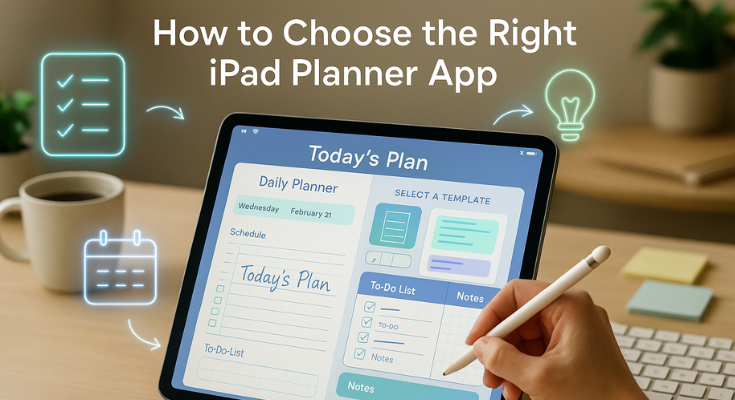
You wake up, pick up your iPad planner app, and with just one tap, your day opens up in front of you, neatly arranged, easy to follow, and stress-free. No piles of paper. No scrambling to remember what’s next. Just a clear, calm layout of your tasks, goals, and plans for the day.
That’s the kind of peace and productivity a great iPad planner app can bring to your life.
But here’s the thing: there are hundreds of planner apps out there. Some look beautiful but lack features. Others are packed with tools but feel too complicated. So, how do you know which one is the right fit for you?
That’s exactly what this guide is here to help with. We’re not just tossing out app names or reviews. We’ll walk you through a simple, step-by-step process to figure out what matters most to you, whether it’s handwriting support for your Apple Pencil, habit tracking, clean templates, or daily goal-setting.
By the time you’re done reading, you won’t just have a list, you’ll have a clear favorite that fits your routine, your style, and the way you like to plan.
If you’re looking for a quick place to start, the PlanWiz iPad planner app is one of the most beginner-friendly and flexible options built specifically for iPad.
Let’s dive in and find your perfect iPad planner app.
Table of Contents
1. Why Go Digital? Unlocking the Magic of iPad Planner Apps
2. Figure Out What Planning Method Works for You
3. The Feature Frenzy: What to Look For in Your Ideal iPad Planner App
4. The Step-by-Step Selection Process: Making Your Choice
5. What Pro Tips Help You Master an iPad Planner App?
6. What Are the Common Pitfalls to Avoid on Your Digital Planning Journey?
7. The Journey Begins: Your Perfect Planner Awaits!
Why Go Digital? Unlocking the Magic of iPad Planner Apps
Before we dive into the apps themselves, let’s talk about why switching to a digital planner on your iPad is such a smart move. If you’re still holding on to your paper planner, this might just be the push you need.
1. Say Goodbye to Paper Clutter (and Save a Few Trees While You’re At It)
Let’s be real—paper planners, notebooks, sticky notes… they all start piling up. Pages get messy, torn, or lost. And don’t even get us started on the guilt of wasting paper when plans change.
With the best digital ipad planner app, everything is in one place. No clutter. No chaos. Plus, you’re being kinder to the planet. It’s a win-win. As Marie Kondo might say: “If it doesn’t spark joy… digitize it.”
2. Your Whole Life, Right in Your Hand
Daily to-dos? Check. Work projects? Check. Grocery list, journal entries, habit tracker, birthday reminders? All there—on your digital ipad planner app. Whether you’re sipping coffee at a café or winding down on your couch, your entire planning system is just a tap away. It’s more than a planner—it’s your command center.
3. Find Anything in Seconds
Ever spent way too long flipping through old planner pages trying to find that one important note? With the best planner for iPad, that’s a thing of the past.
Most apps have powerful search features, and some can even read your handwriting! That means less time hunting and more time doing. Like Ben Franklin said, “By failing to prepare, you are preparing to fail.” But with a digital planner, you’re always prepared—no page-flipping required.
4. Flexible, Just Like Your Life
Life changes—and so should your planner. With digital tools, you can easily switch layouts, try new styles, add sections, or decorate with digital stickers. Your planning system grows with you. No need to buy a new planner every time your routine shifts. It’s all adjustable—whenever you want.
5. Plan Smarter with More Than Just Pen and Paper
This is where digital planners shine. They’re not just about writing things down—they let you do so much more:
- Add photos or screenshots to your notes
- Record quick voice memos on the go
- Link directly to websites, documents, or reference materials
- Use digital stickers, GIFs, or videos to make planning fun and visual
It’s a whole new level of planning—more creative, more organized, and way more personal.
6. Never Lose a Thing (Thanks to Cloud Syncing)
Spilled coffee? Left your planner at home? No worries. With cloud syncing, everything stays backed up and available across your devices—your iPad, iPhone, or even your laptop. That means your plans are always safe, secure, and ready when you need them.
7. Smart Features That Make Life Easier
Modern iPad planner apps come with clever tools that you’ll wonder how you ever lived without:
- Handwriting recognition (yes, it can turn your scribbles into searchable text!)
- Hyperlinked pages for quick navigation
- Shared planning or collaboration options
- Some even use AI to suggest the best time for your tasks
It’s planning, but smarter.
8. It’s Cost-Effective
At first, buying an app might seem like an extra expense. But think about how much you spend on paper planners, pens, notebooks, and stickers every year. A good digital planner for the iPad can replace all of that, for a one-time purchase or an affordable subscription. In the long run, it saves you money (and space).
9. Less Clutter, More Clarity
With everything on your iPad, your desk stays clean, your bag stays light, and your mind stays focused. A digital planner helps you create a more minimal, intentional space for both work and life.
Figure Out What Planning Method Works for You
Let’s start with the most important step in choosing the right iPad planner app: Get to know how you like to plan. Yep, before downloading anything or comparing features, take a moment to look inward. This isn’t about chasing the “best” app that everyone’s raving about—it’s about finding the one that fits you like your favorite pair of sneakers.
Because let’s face it:
You wouldn’t buy running shoes if you hate running. So why use a planner app that doesn’t match your planning style?
Why Self-Reflection Matters
Everyone plans differently. Some people want structure and clean layouts. Others want full creative freedom with doodles, stickers, and color coding.
There’s no right or wrong way—it’s just your way. When you understand how your brain likes to stay organized, it becomes way easier to spot the apps that fit (and skip the ones that don’t). Think of this as your planner personality quiz.
What’s Your Planning Style?
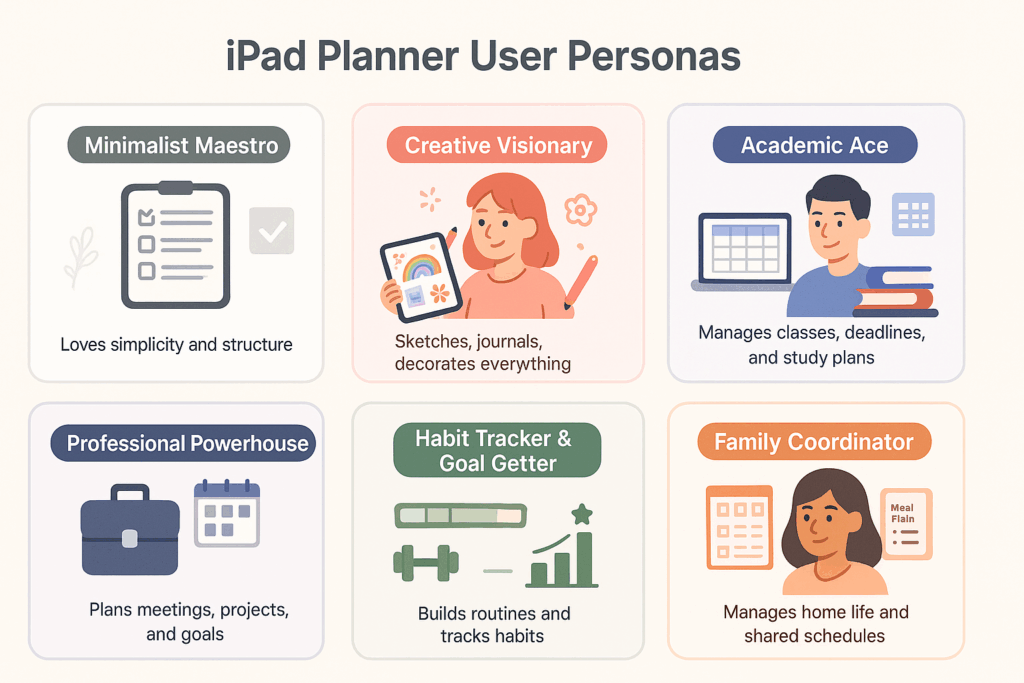
Here are some common planning styles. See which one feels most like you:
The Minimalist Maestro
You love clean, simple, no-nonsense layouts. Clutter stresses you out. You want to open your planner, jot things down quickly, and get on with your day.
- What you need: A sleek, distraction-free interface with just the basics—like a to-do list and calendar. No fluff, just function.
- You might be: Someone who wants a quick way to track daily tasks, meetings, or appointments—nothing more, nothing less.
The Creative Visionary
Your planner is your canvas. You love sketching, decorating, journaling, and customizing every page to reflect your mood or style. Using your Apple Pencil feels natural.
- What you need: A flexible, visually rich app that supports handwriting, drawing, and layout freedom. Think: digital bullet journaling or scrapbook-style planning.
- You might be: An artist, designer, or anyone who enjoys expressing themselves through visuals, color, and creativity.
The Academic Ace
Your life is built around lectures, assignments, deadlines, and study sessions. You need a system that keeps track of all the moving pieces.
- What you need: An app with features like timetable planning, subject-specific notes, reminders for deadlines, and even audio recording for classes.
- You might be: A college student, an online learner, a researcher, or anyone managing a busy academic life.
The Professional Powerhouse
Your calendar is packed. You’re managing tasks, team projects, meetings, and timelines. You need more than just a planner—you need a productivity hub.
- What you need: Strong task management tools, sub-tasks, calendar sync, project tracking, and possibly shared access with others.
- You might be: A team leader, entrepreneur, executive, or consultant, juggling multiple roles and responsibilities.
The Habit Tracker & Goal Getter
You’re all about self-improvement. You love setting goals, building routines, and tracking progress over time.
- What you need: An app that helps you visualize habits, track streaks, set goals, log moods, and reflect on personal growth.
- You might be: A fitness enthusiast, someone learning a new skill, or anyone working on consistency and self-discipline.
The Family Coordinator
You’re the glue holding everything together at home. From kids’ school events to grocery runs, you manage it all.
- What you need: A planner with shared calendars, collaborative task lists, meal planning sections, and maybe even voice reminders.
- You might be: A parent organizing multiple schedules, a couple managing shared tasks, or a household CEO making life smoother for everyone, can all benefit from using a schedule maker that brings clarity and coordination to their day.
Key Questions to Ask Yourself (And Why They Matter!)
Now that you’ve got a better idea of your planning style, let’s dig a little deeper. This next step will help you figure out exactly what features you need in an ipad planner app—so you don’t waste time on ones that look pretty but don’t work for you.
You can jot these down in your notebook, or open up Apple Notes, Notepad, or even the app you’re testing. Think of this as your checklist for finding the perfect fit.
What are your main planning goals?
Are you managing daily tasks? Tracking habits? Juggling work and personal projects? Maybe all of the above?
- Why this matters:
Knowing what you want to plan helps you focus on apps that offer the right tools—whether that’s goal tracking, time blocking, or free-form journaling.
Do you prefer typing or handwriting?
Do you love the feel of writing with your Apple Pencil? Or do you type faster and find digital keyboards more efficient?
- Why this matters:
If handwriting is your thing, you’ll want smooth writing support, good pen tools, and even handwriting-to-text conversion. But if you’re all about fast typing, look for strong text formatting and keyboard shortcuts.
How visual are you?
Do you enjoy colorful layouts, timelines, and creative space for sketching? Or do you like a simple, clean list format?
- Why this matters:
Some people are visual thinkers and need to see their day mapped out clearly. Others prefer minimal layouts without too many distractions. The right visual style can help your brain process tasks more easily.
Do you need your planner to sync across devices?
Are you switching between your iPad, iPhone, and maybe even your laptop?
- Why this matters:
If you’re always on the go, cross-device syncing is a must. Make sure the app works smoothly across your Apple ecosystem (or even with other devices like Windows or Android, if needed).
Do you plan with others?
Do you share tasks with your team, family members, or a partner?
- Why this matters:
Collaboration features like shared calendars, task lists, or planning boards make life so much easier when you’re working together. If this applies to you, rule out apps that are strictly solo-use.
What’s your budget?
Are you looking for a free app, okay with a one-time purchase, or open to a monthly subscription?
- Why this matters:
Prices vary widely. Some apps are free with basic features, while others offer powerful tools behind a paywall. Decide what you’re willing to invest—and remember, a well-used planner app often saves more time and money in the long run.
What other tools do you use daily?
Do you rely on Google Calendar? Dropbox? Apple Reminders? Do you need to connect your planner with other apps?
- Why this matters:
If an app plays well with the tools you already use, your workflow becomes smoother and more efficient. Integrations can be a game-changer.
Answering these questions honestly is like creating your very own planner app filter. Instead of getting overwhelmed by all the options out there, you’ll know exactly what to look for—and more importantly, what to avoid.
Now that you know your planning style, it’s time to find the features that fit. You don’t need all the bells and whistles—just the ones that support how you plan best. Whether you love simplicity, creativity, or multitasking, the right tools can turn a good app into your perfect daily planner.
To help you get started, we’ve handpicked the best iPad planner apps, complete with intros, key features, pricing, platform compatibility, and ideal use cases, so you can quickly compare and choose the one that fits your workflow best.
The Feature Frenzy: What to Look For in Your Ideal iPad Planner App
Now that you know your planning style and what matters to you, let’s zoom in on features. This is where you’ll figure out what tools your ideal ipad planner app should have to truly support the way you plan, work, and live.
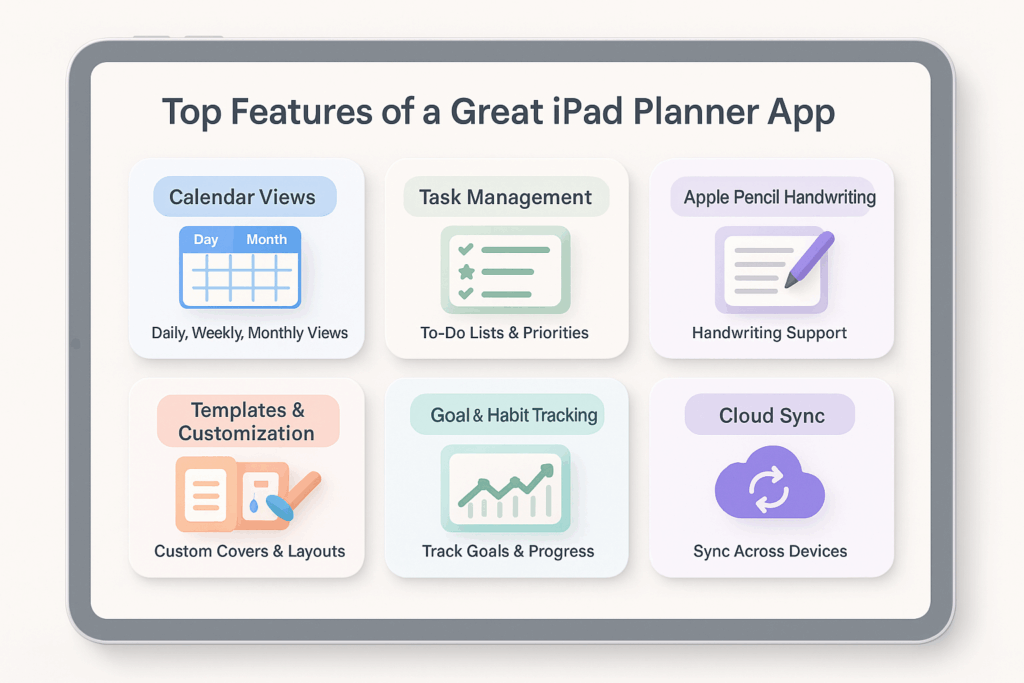
Think of this section as your personal planner app checklist—with everything broken down clearly so you know what to look for (and what to skip).
Core Planning Essentials
These are must-haves for any good ipad planner app:
- Flexible Calendar Views
Switch between daily, weekly, monthly, or yearly views. Some even offer timeline or agenda-style layouts.
→ Can you zoom out for the big picture or zoom in for daily details? - Drag-and-Drop Scheduling
Move tasks or events easily without retyping. - Robust Task Management
- To-do lists with checkboxes
- Sub-tasks to break things down
- Recurring tasks (daily/weekly/monthly)
- Due dates, reminders, and priorities (stars, color codes, etc.)
Dynamic Note-Taking Tools
Perfect for combining structure with creativity:
- Handwriting Support
Smooth Apple Pencil experience with different pens, highlighters, colors, and pressure sensitivity. - Typing Options
Rich text formatting—change fonts, sizes, styles, and add colors. - Multimedia Support
Add photos, audio notes, links, or even videos to your pages. - Shape Recognition
Draw perfect circles, boxes, or arrows with a scribble.
Organization & Customization
Make it feel like your planner—because the best organization apps for iPad aren’t just about features, they’re about giving you a space that feels tailored to you.
- Ready-to-Use Templates
For daily, weekly, goal tracking, budgeting, and more. Bonus if you can create or import your own. - Stickers & Digital Elements
Add flair with sticky notes, icons, and custom visuals. Great for visual thinkers and creatives. - Folders, Notebooks & Tags
Keep everything organized. Use folders for areas of life (Work, Study, Home), and tags to find things fast. - Custom Covers & Pen Tools
Personalize the look of your digital notebooks and tool palette.
Productivity & Workflow Boosters
If you love being efficient, these features matter:
- Search Everything
Find notes instantly. Some apps even let you search your handwriting (thanks, OCR!). - Home Screen Widgets
View tasks or events without opening the app. - Smart Reminders
Custom alerts so you never miss a deadline. - Time Blocking / Pomodoro Tools
Focus features to help you work in bursts and stay on track. - Goal & Habit Trackers
Keep an eye on progress, whether it’s fitness, learning, or self-care. - AI Assistants
Some apps now suggest task times, read natural language, or even auto-schedule for you. The future is here!
👉 Want to go deeper? Check out our guide on how to increase productivity with a digital iPad planner. It explores real workflows, proven strategies, and digital tools that make daily planning smarter, not harder.
Integrations & Compatibility
Your ipad planner app should work with the tools you already use:
- Calendar Sync
Two-way sync with Apple Calendar, Google, or Outlook. - Cloud Storage
Save and backup to iCloud, Google Drive, Dropbox, etc. - App Connections
Integrate with Apple Reminders, Notes, Notion, or your email. - Cross-Device Sync
Access your planner on iPad, iPhone, Mac, or even Windows, if needed.
User Experience (UX)
This is about how the app feels to use day-to-day:
- Simple, Intuitive Interface
Easy to navigate, clean layout, and no clutter. - Low Learning Curve
Can you get started without a long tutorial? Bonus if it’s beginner-friendly. - Smooth Performance
Fast, responsive, and doesn’t lag—even with heavy content. - Accessibility Options
Dark mode, text resizing, or voice commands for better usability.
Pricing Models
Every app handles pricing differently. Here’s what to know:
- Free Plans
Great to test out, but may have limits or ads. - One-Time Purchase
Pay once, use forever. Often better long-term value. - Subscriptions
Monthly or yearly plans with ongoing updates and features. - In-App Purchases
Optional extras like sticker packs, templates, or premium tools.
Security & Privacy
Don’t overlook this—your planner holds personal data:
- Data Protection
Is your data encrypted? Is cloud sync secure? - Privacy Policy
Read the fine print. Make sure your info isn’t being sold or shared.
The Step-by-Step Selection Process: Making Your Choice
You’ve explored your planning style, figured out which features matter most that caught your eye. Now it’s time to pull it all together and make a confident decision, without the stress. Here’s a clear, step-by-step process to help you choose the best iPad planner app for you.
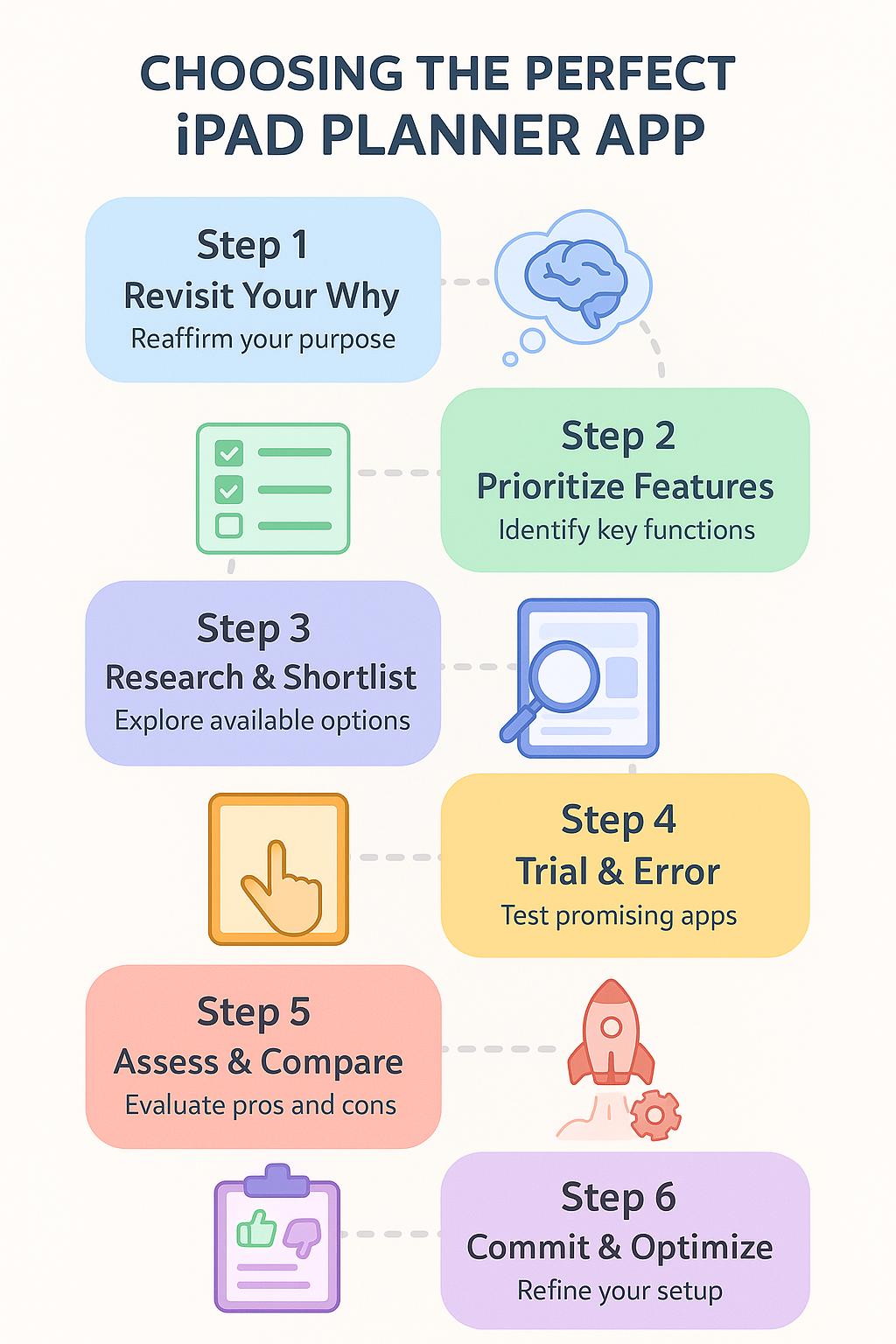
Step 1: Revisit Your “Why” & Define Your Core Needs
Before jumping into downloads, pause for a moment and come back to yourself. Ask yourself:
- What’s the biggest pain point in my planning right now?
Are you forgetting appointments? Struggling to stay consistent with habits? Or feeling overwhelmed because everything’s scattered across sticky notes and multiple apps? - Which “planning persona” did I connect with most?
Are you a clean-cut Minimalist? The creative doodler? The multitasking pro? This alone narrows down your choices drastically. - What features are non-negotiable for me?
Is it Apple Pencil handwriting? Two-way calendar sync? Easy habit tracking? Jot down 3–5 must-have features.
These three answers are your foundation. Everything else builds from here.
Step 2: Prioritize Your Features
Head back to your planner feature list and begin sorting everything into clear categories:
- Must-Have: These are deal-breakers. If an app doesn’t have this, it’s out.
- Nice-to-Have: These would make the experience better, but you could still manage without them.
- Not Needed: Features that sound cool but don’t align with your planning style or daily routine.
Be honest with yourself. You’re creating your feature filter, and this will become super helpful when you’re comparing apps side by side.
💡 Tip: If Apple Pencil support is important to you, test how it feels in the app—not all handwriting experiences are created equal!
Step 3: Research & Narrow Down Your Candidates
With your planning style and feature filter in hand, you’re ready to explore what’s out there:
- Start with a curated list (like the one coming next in this guide).
- Go beyond star ratings — App Store reviews can be vague. Instead:
- Watch a few YouTube walk-throughs (seeing the app in action is a game-changer).
- Read blog reviews or Reddit threads where real users share their long-term experiences.
- Check the developer’s website — Look for full feature breakdowns, FAQs, demo videos, and active support.
From there, shortlist 2 to 3 apps that look like strong contenders for your unique needs.
Step 4: Trial & Error: The Hands-On Test Drive
This is the most critical step! Don’t just download and open an app once.
- Download free versions or use free trials: Most good apps offer a free version with limited features or a trial period (e.g., 7 days). TAKE ADVANTAGE OF THESE!
- Commit to a few days: Dedicate at least 3-5 days to actively using each shortlisted app for your actual planning needs.
- Try planning your real day.
- Enter real tasks and appointments.
- Take genuine notes.
- Test the features you marked as “essential.”
- Pay attention to the “feel”: Does the app’s interface flow naturally with how your brain works? Does it feel clunky or intuitive? Does it frustrate you or empower you? User experience is paramount.
- Test performance: Does it lag? Does it crash? (Hopefully not!)
Step 5: Assess & Decide
After your trial period, sit down and compare your experiences.
- Scorecard: How did each app measure up against your “essential” features list?
- Friction Points: Which app introduced the least amount of friction into your workflow? Which one made things easier?
- Long-Term Vision: Can you see yourself using this app constantly for months or years? Does it have room to grow with you?
- Community & Support: Is there an active community (Reddit, YouTube, Discord) for the app? Does the developer offer good customer support and regular updates? This indicates a commitment to the product.
Step 6: Commit (and Optimize!)
Once you’ve made your choice, stick with it for at least 1–2 months. Give yourself time to adjust and build habits. Here’s how to make the most of your new digital planner:
- Learn the app deeply: Watch tutorials, explore all the settings, and uncover shortcuts or hidden features.
- Customize your space: Set up your colors, templates, categories, and planning structure. Personal touches make a big difference.
- Adapt your system: Don’t be afraid to tweak things. Your app should serve you, not the other way around.
Remember: your planner is a support system, not a perfect solution. You’ll grow with it over time.
What Pro Tips Help You Master an iPad Planner App?
So you’ve picked your perfect planner app—awesome! But now comes the fun part: making it truly yours. One of the best ways to do that? Start with a digital planner template.

Think of templates as your planning shortcut—they give you a ready-to-go structure so you’re not staring at a blank screen wondering where to begin. Whether it’s a weekly layout, goal tracker, or meal plan, having a solid template makes everything easier (and way more satisfying).
And if you’re looking to save time, stay organized, or just make your planner look good, these next five tips will help you go from casual user to confident digital planning pro.
1. Master Your Apple Pencil (and Scribble Magic)
If you’re using an Apple Pencil, you’re already ahead—but there’s more to it than just writing. A great pencil planner takes full advantage of Apple Pencil features to boost your productivity. Learn the handy double-tap gesture to switch between pen and eraser instantly (many apps support this).
Want to type less? Use Apple’s Scribble tool to write in any text field and watch it magically convert to typed text—great for quick lists or calendar entries. And in note-friendly apps like PlanWiz or Notability, long-pressing your handwritten notes lets you move, resize, or convert them into typed text. It’s like editing on paper, only smarter.
2. Personalize Your Planner Templates & Covers
customize or import your templates—whether it’s a weekly overview, meal tracker, or project planner. If you want to skip the design work, check out these planner templates by PlanWiz. They’re professionally designed, easy to customize, and cover a wide range of use cases, from productivity to wellness. You can even design your internal pages and stylish covers.
The goal? Make your iPad planner functional and visually inspiring. When it looks good, you’re more likely to stick with it. Try setting up a fresh layout at the start of each month to keep things exciting and tailored to your current goals.
3. Use Hyperlinks for Instant Navigation
One of the biggest advantages of digital over paper? Jumping between pages with just one tap. Learn how to use internal hyperlinks in your planner. For example, you can link your monthly calendar to each daily page, or connect a project overview to related meeting notes. It’s like building a mini website for your life—fast, efficient, and incredibly helpful when you’re juggling lots of moving parts.
4. Backup & Sync—Seriously, Do It
Nothing kills productivity faster than losing everything you’ve planned. That’s why setting up automatic cloud backups is non-negotiable. Most ipad planner apps support iCloud, Dropbox, or Google Drive—make sure it’s turned on.
Also, enable syncing across your devices (iPad, iPhone, Mac), so your planner is always within reach. A little setup now = total peace of mind later.
5. Connect with the Community & Stay Updated
Your app isn’t static—new features, templates, and productivity hacks roll out all the time. Stay in the loop by following the app’s blog, YouTube channel, or social media. Better yet, join online user groups on Reddit or Facebook.
You’ll discover hidden features, get free templates, and learn how others creatively use the same tools. Planning doesn’t have to be a solo journey—there’s a whole community out there to support you.
What Are the Common Pitfalls to Avoid on Your Digital Planning Journey?
Even with the right ipad planner app in hand, there are a few common traps that many digital planners fall into—especially when just starting. The good news? They’re easy to avoid once you know what to look for. Let’s walk through the biggest ones and how to sidestep them with ease.
Overthinking Everything (a.k.a. Analysis Paralysis)
It’s easy to fall into the rabbit hole of watching endless reviews, comparing every feature, and waiting for “just one more recommendation” before starting. But planning doesn’t begin in the perfect app—it begins with action. Don’t wait forever. Use the steps you’ve already followed in this guide to make a solid choice, and then start. Remember what Lao Tzu said: “A journey of a thousand miles begins with a single step.” Take that step today.
Feature Overload Can Weigh You Down
Yes, it’s tempting to go for the app with all the bells and whistles. But here’s the truth: if you’re only using 10% of its features, the rest might just get in your way. Too many options can make planning feel overwhelming instead of helpful. Focus on those ipad planner apps that match your core needs—not the ones trying to be everything for everyone. Simplicity = clarity.
Chasing the “Perfect App” Myth
There’s always a newer, shinier app out there. And while it’s okay to explore down the road, constantly jumping from one planner to another can keep you stuck in setup mode forever. No app is perfect. The key is finding the one that supports your current lifestyle and letting it work for you—imperfectly but effectively. You can always reassess later.
Not Giving It Enough Time to Work
Any new system—digital or not—feels a little unfamiliar at first. It takes time to build habits and muscle memory around your ipad planner. So don’t quit after two days. Commit to using your chosen app for a few consistent weeks before judging whether it’s “working.” Most successful planners give it at least 30 days before tweaking anything major.
And if you’re just starting, check out these time management tricks for iPad planner beginners to help you build momentum faster and stay consistent during those early days.
Skipping the Learning Curve (and the Tutorials)
Let’s be honest—no one loves reading manuals. But most apps have helpful walkthroughs or quick video tutorials that can save you hours of frustration and unlock powerful features you didn’t even know existed. Give yourself 20–30 minutes upfront to learn the basics, and you’ll feel more confident using your app like a pro.
Ignoring Backups (Please Don’t!)
We’ve said it before—and we’ll say it again: backup your data! Your planner holds your schedule, goals, thoughts, and progress. Losing all of that due to a sync issue or accident can be a real setback. Make sure your app is set up to auto-save to iCloud, Dropbox, or another reliable cloud service. Think of it as insurance for your plans.
Trying to Copy Your Paper Planner Exactly
If you’re transitioning from paper to digital, it’s normal to want things to feel familiar. But remember: you chose digital for a reason. Don’t try to recreate every inch of your paper planner. Instead, embrace the superpowers digital gives you—like searching handwritten notes, embedding links, or syncing across devices. Let your digital planner do what paper never could.
Top iPad Planner Apps Built for Apple Pencil Users
Free iPad Planner Apps: 7 Amazing Tools That Cost Nothing
iPad Organization App: The Complete Guide to Digital Order
The Digital Handwriting: Master Your iPad Planner with These Pro Tips
The Journey Begins: Your Perfect Planner Awaits!
Wow, look how far you’ve come!
From discovering your unique planning style to exploring must-have features and learning how to choose and use your ideal app… you’re now miles ahead of most people still stuck in planning overwhelm.
But here’s the best part:
This isn’t just about picking an app. It’s about creating a system that helps you stay focused, feel less stressed, and finally bring all those ideas and goals into real, daily action.
Your iPad planner app can be more than just a tool — it can be a quiet companion that helps you organize your chaos, track your progress, and carve out space for what matters.
So what now?
👉 Pause. Reflect. Choose one app to test-drive today.
If you’re unsure where to start, PlanWiz is one of the best iPad planner apps out there, especially if you want powerful templates, Apple Pencil support, and a beautiful, easy-to-use layout. Download it. Set up one daily plan. See how it feels. That one small action can be the start of a more organized, focused, and intentional day.
FAQs
The best digital planner for iPad depends on your planning style. Apps like PlanWiz offer great flexibility, Apple Pencil support, and customizable templates to suit various needs.
No, but having one enhances the experience. Many planner apps are Pencil-optimized and support handwriting, drawing, and quick note-taking.
Yes, if you value searchability, customization, portability, and syncing across devices. Digital planners reduce paper clutter and improve efficiency.
Yes, most good apps offer cross-device sync so you can access your planner anywhere.
Yes! PlanWiz, for example, offers a free version with thousands of planner templates and intuitive Apple Pencil support.
Commit to a daily check-in, personalize your planner with custom templates, and avoid switching apps too often.
Definitely. Many apps offer student-specific templates for class schedules, assignment tracking, and exam prep.